
Secure Video Сonferencing System and Corporate Messenger
The cutting-edge video conferencing and collaboration server is now available for free for up to 50 users!



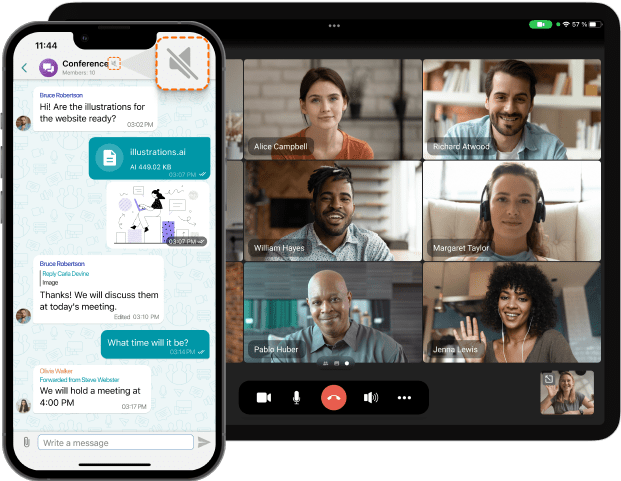


Why TrueConf?
![Enterprise-ready]()
Enterprise-ready
Easy-to-deploy and scalable video conferencing and team collaboration platform embraced by thousands of organizations worldwide.
![Security-first]()
Security-first
Encryption, ISO 27001 and GDPR compliance, offline operation in LAN/VPN, and complete control over your communications.
![On-premises Infrastructure]()
On-premises Infrastructure
Unlike rented cloud solutions, a server is a reliable investment in your company's future, only needing to be purchased once.


All you need to make teamwork happen
- Team messaging
- 4K video conferencing
- Ultimate collaboration
- Unified communications
- Advanced meeting management
Connect with colleagues in personal and group chats before, during, and after video meetings to streamline your teamwork.
![Team messaging]()
Schedule conferences and meet instantly with up to 1,500 participants while enjoying immersive video communication powered by AI.
![4K video conferencing]()
Collaborate with teammates in real time: share screen, show slides, co-edit content, and provide remote assistance.
![Ultimate collaboration]()
Stay engaged and connected with colleagues wherever you are with advanced presence statuses and the ability to sign in on multiple devices simultaneously.
![Unified communications]()
Manage meetings like a pro: control participants’ cameras and microphones, set global and individual video layouts, or lock the view to keep the audience focused on what matters.
![Advanced meeting management]()


Video Overview
Explore the key features of our team collaboration app!

Our customers


TrueConf Industry Solutions


Choose your solution


Experience the cutting-edge capabilities of TrueConf Server right away!

Latest News
![TrueConf 3.5.4 for iOS: support for Apple Vision Pro and default microphone muting]() 2024-04-19
2024-04-19TrueConf 3.5.4 for iOS: support for Apple Vision Pro and default microphone muting
![TrueConf Room 4.3: Smart noise suppression and stand-by mode]() 2024-04-12
2024-04-12TrueConf Room 4.3: Smart noise suppression and stand-by mode
![TrueConf offers secure video conferencing software for every industry and need]() 2024-04-05
2024-04-05TrueConf offers secure video conferencing software for every industry and need


